Monthly Reset Checklist (Free Template): Review, Declutter, and Plan Next Month
Last updated: June 2026 • By Abdulbatin Anaza
After implementing monthly review routines across different work scenarios over four years, I found that the versions that stuck long-term had one thing in common: they were short enough to actually complete. When testing monthly reset systems with teams and individual professionals, the 90-minute checklist format consistently outperformed elaborate multi-day review processes that people abandoned by the third month.
Here’s what works: a monthly reset checklist with six focused sections—reviewing wins, cleaning files and inbox, adjusting calendar, checking finances, updating devices, and planning next month’s Big 3 outcomes. Schedule it as a recurring 90-minute block, use a simple template, and treat it like a non-negotiable monthly appointment. I’ll show you the exact printable and Google Sheets templates, step-by-step timing for each section, and the mistakes that cause most people to abandon their reset routine after 2-3 months.
Why a Monthly Reset Checklist Works
Monthly resets create a forcing function for maintenance that otherwise never happens. Without dedicated time, digital clutter accumulates, subscriptions auto-renew unnoticed, and priorities drift from what you intended to what’s urgent.
What monthly resets prevent:
- Cluttered desktops and downloads folders that make finding files take 3x longer
- Email inboxes with 500+ unread messages and newsletters you never open
- Calendars filled with recurring meetings that no longer serve their purpose
- Subscriptions billing automatically for services you stopped using months ago
- Goals set in January that you haven’t checked on since February
When to schedule your monthly reset:
- Last Friday of the month: Close out the month cleanly before weekend
- First Monday of new month: Start fresh with clear priorities
- Fixed date (28th-31st): Same date each month, adjust for weekends
In testing, people who scheduled resets on the same day/time each month (recurring calendar event) completed 11 out of 12 resets annually. Those who did it “when I have time” averaged 3-4 resets per year.
Monthly Reset Checklist Templates
Printable One-Page Template
Copy this into Google Docs, Word, or print directly. Keep it visible during your reset session.
MONTHLY RESET CHECKLIST — [MONTH YEAR]

━━━━━━━━━━━━━━━━━━━━━━━━━━━━━━━━━━━━━━━━━━━━━━━━━━━━━━━

LOOK BACK (15 minutes)

Wins this month (3-5):
1. _____________________________________________________________
2. _____________________________________________________________
3. _____________________________________________________________
4. _____________________________________________________________
5. _____________________________________________________________

Progress metrics (optional):
• _____________________________________________________________
• _____________________________________________________________

One lesson learned:
_________________________________________________________________

One thing to stop doing:
_________________________________________________________________

━━━━━━━━━━━━━━━━━━━━━━━━━━━━━━━━━━━━━━━━━━━━━━━━━━━━━━━

FILES & INBOX CLEANUP (15 minutes)

☐ Clear Desktop (move files to proper folders)
☐ Empty Downloads folder (delete junk, organize keepers)
☐ Process email inbox (archive, delete, unsubscribe from 3-5 lists)
☐ Rename important files with consistent naming (YYYY-MM-DD format)
☐ Delete duplicate files

━━━━━━━━━━━━━━━━━━━━━━━━━━━━━━━━━━━━━━━━━━━━━━━━━━━━━━━

CALENDAR & TASKS (15 minutes)

☐ Review last month's calendar (where did time actually go?)
☐ Delete completed tasks from task manager
☐ Reschedule postponed tasks or delete if no longer relevant
☐ Add recurring time blocks for next month (focus time, admin, breaks)
☐ Block out no-meeting zones
☐ Add important dates (deadlines, renewals, appointments)

━━━━━━━━━━━━━━━━━━━━━━━━━━━━━━━━━━━━━━━━━━━━━━━━━━━━━━━

FINANCES & SUBSCRIPTIONS (15 minutes)

☐ Review bank/credit statements (flag unusual charges)
☐ List all active subscriptions
☐ Cancel/downgrade unused subscriptions
☐ Set calendar reminders for upcoming bill due dates
☐ Update expense tracking or budget
☐ Log any pending reimbursements

━━━━━━━━━━━━━━━━━━━━━━━━━━━━━━━━━━━━━━━━━━━━━━━━━━━━━━━

DEVICES & DIGITAL MAINTENANCE (10 minutes)

☐ Update operating system and applications
☐ Check cloud storage usage (Google Drive, OneDrive, iCloud)
☐ Clear browser cache and cookies if computer feels slow
☐ Back up important folders to external drive or cloud
☐ Delete old files from cloud storage if approaching limit

━━━━━━━━━━━━━━━━━━━━━━━━━━━━━━━━━━━━━━━━━━━━━━━━━━━━━━━

PLAN NEXT MONTH (20 minutes)

Theme/Focus for next month:
_________________________________________________________________

Big 3 Outcomes (what success looks like):
1. _____________________________________________________________
2. _____________________________________________________________
3. _____________________________________________________________

First focus blocks scheduled (specific dates/times):
• _____________________________________________________________
• _____________________________________________________________
• _____________________________________________________________

One habit to start or improve:
_________________________________________________________________

One project or commitment to say no to:
_________________________________________________________________

━━━━━━━━━━━━━━━━━━━━━━━━━━━━━━━━━━━━━━━━━━━━━━━━━━━━━━━

NOTES & REMINDERS:
_________________________________________________________________
_________________________________________________________________
_________________________________________________________________
Google Sheets Tracking Template
Use this to track your monthly reset tasks and link to relevant documents or tools.
Create the spreadsheet:
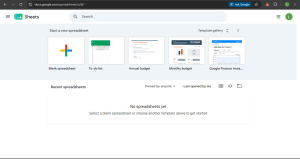
- Open Google Sheets, create new spreadsheet
- Name it “Monthly Reset Tracker 2026”
- Add these column headers in row 1:
- A1: Area
- B1: Task
- C1: Owner
- D1: Due Date
- E1: Status
- F1: Notes
- G1: Link
Sample data to paste:
| Area | Task | Owner | Due Date | Status | Notes |
|---|---|---|---|---|---|
| Look Back | List 3-5 wins | Me | 2026-02-01 | Not started | Review project completions |
| Files & Inbox | Empty Downloads | Me | 2026-02-01 | Not started | Move PDFs to /Docs/Receipts |
| Calendar | Add focus blocks | Me | 2026-02-01 | In progress | Mon/Wed 9-11am |
| Finances | Review subscriptions | Me | 2026-02-01 | Not started | Cancel unused tools |
| Devices | Back up projects | Me | 2026-02-02 | Not started | Zip and upload to Drive |
| Plan | Set Big 3 for Feb | Me | 2026-02-02 | Not started | Align with Q1 goals |
Add conditional formatting to Status column (green for Done, yellow for In progress, red for Not started) to visualize completion.
Step-by-Step Monthly Reset Process (90 Minutes)
Here’s the exact timing and flow I use. Time-boxing each section prevents the reset from expanding into a 4-hour project you’ll dread next month.
Section 1: Look Back (15 Minutes)
What to do:
- List 3-5 wins from the month (projects completed, skills learned, positive feedback, personal achievements)
- Optional: Update any simple metrics you track (workouts completed, articles published, hours focused)
- Write one lesson learned (what worked, what didn’t)
- Write one thing to stop doing next month (ineffective meeting, time-wasting habit, low-value project)
Why this matters: Without reviewing wins, months blur together and you can’t see progress. The “stop doing” item creates space for what matters.
What didn’t work in testing: Trying to review every project or task from the month. This turned into 45-minute sessions reviewing trivial details. Stick to top 3-5 wins only.
Section 2: Files & Inbox Cleanup (15 Minutes)
Desktop and Downloads:
- Open Desktop folder, select all files
- Move files to appropriate permanent folders (Documents, Projects, Archive)
- Delete screenshots, temp files, installers you no longer need
- Open Downloads, sort by date
- Delete anything older than 30 days (or move important files first)
Email inbox:
- Archive or delete emails older than 2 weeks that you haven’t acted on
- Unsubscribe from 3-5 newsletters you never open (click unsubscribe at bottom)
- Create filters for recurring low-priority emails (auto-archive or label)
- Aim for inbox under 50 messages
File naming consistency:
Rename important files using YYYY-MM-DD format for easy sorting. Example: “2026-01-28-Client-Proposal.pdf” instead of “Proposal_final_v3.pdf”
For batch renaming many files at once, see bulk rename guide.
Section 3: Calendar & Tasks Review (15 Minutes)
Review last month’s calendar:
- Open calendar, switch to month view for past month
- Scan for patterns: Which meetings were valuable? Which wasted time?
- Note time-wasters to decline or shorten next month
Clean up task manager:
- Delete completed tasks
- Delete tasks you’ve been postponing for 3+ months (if not done by now, not happening)
- Reschedule tasks you genuinely intend to do with specific dates
- Archive old projects to “Someday” list
Set up next month’s calendar:
- Add recurring focus blocks (example: Monday/Wednesday 9-11am for deep work)
- Block no-meeting times (mornings for focus, Friday afternoons for planning)
- Add known deadlines, appointments, bill due dates
- Add your weekly planning time
Section 4: Finances & Subscriptions (15 Minutes)
Review statements:
- Open bank or credit card statement from past month
- Scan for unusual charges or errors
- Flag any charges you don’t recognize for follow-up
Subscription audit:
- List all active subscriptions (check email for “payment received” messages)
- Cancel any you haven’t used in 30 days
- Downgrade subscriptions where you’re paying for features you don’t use
- Add renewal dates to calendar with 7-day reminder
Budget and tracking:
- Update expense tracker or budget spreadsheet if you maintain one
- Log any pending reimbursements from work
- Set up any automatic savings transfers if needed
In testing, this 15-minute monthly audit consistently identified $20-50 USD in forgotten subscriptions people were able to cancel.
Section 5: Devices & Digital Maintenance (10 Minutes)
Software updates:
- Check for operating system updates (Windows Update, macOS Software Update)
- Update critical applications (browser, email client, productivity tools)
- Restart computer if it’s been running for weeks
Storage check:
- Check cloud storage usage (Google Drive, OneDrive, iCloud, Dropbox)
- If approaching storage limit, delete old files or archived projects
- Empty trash/recycle bin to actually free space
Performance maintenance:
- If computer feels slow, clear browser cache and cookies
- Close browser tabs you’ve had open for weeks
- Uninstall applications you no longer use
Backup check:
- Verify automatic backups ran successfully (Time Machine on Mac, File History on Windows)
- If no automatic backup: manually copy important folders to external drive or cloud
Section 6: Plan Next Month (20 Minutes)
Choose a theme:
One focus area for the month. Examples: “Launch product,” “Build consistency,” “Learn new skill,” “Improve health habits”
Set Big 3 outcomes:
What would make next month successful? Pick 3 measurable outcomes tied to your theme:
- Not: “Work on marketing” → Yes: “Publish 4 expert articles and grow email list by 200”
- Not: “Get healthier” → Yes: “Work out 12 times and meal prep every Sunday”
- Not: “Learn coding” → Yes: “Complete 3 courses and build one portfolio project”
Schedule first focus blocks:
- For each Big 3 outcome, add 2-3 specific calendar blocks in the first week
- Example: If outcome is “publish 4 articles,” block Monday 9-11am for writing
- Don’t just list intentions—put them on calendar with date and time
One habit to start:
Pick one small habit to support your theme. Examples: “Morning pages daily,” “No phone first hour,” “Walk after lunch”
One thing to decline:
What commitment, project, or recurring meeting will you say no to next month to protect time for Big 3?
Suggested Timing Breakdown
| Time | Section | Duration |
|---|---|---|
| 0:00-0:15 | Look Back | 15 min |
| 0:15-0:30 | Files & Inbox Cleanup | 15 min |
| 0:30-0:45 | Calendar & Tasks | 15 min |
| 0:45-1:00 | Finances & Subscriptions | 15 min |
| 1:00-1:10 | Devices & Maintenance | 10 min |
| 1:10-1:30 | Plan Next Month | 20 min |
Total: 90 minutes. Set timer for each section to stay on track.
Common Mistakes to Avoid
Mistake 1: Skipping the Reset Because You’re “Too Busy”
When implementing monthly resets, I skipped October and November one year because work was intense. By December, my inbox had 800 messages, desktop had 200 files, and I’d lost track of which subscriptions were auto-renewing.
The fix: Treat monthly reset like a non-negotiable appointment. Block it on calendar with reminder. If you absolutely can’t do 90 minutes, do a “lite” 30-minute version: wins, Big 3 for next month, and file cleanup only.
Mistake 2: Trying to Make It Perfect
What didn’t work: Spending 3 hours on the reset, organizing every file into perfect folders, cleaning 100% of email, color-coding the entire calendar.
Why it fails: Perfection takes so long you’ll dread next month’s reset and skip it.
Better approach: Time-box each section strictly. When 15 minutes is up, move to next section even if inbox isn’t zero. Good enough beats abandoned.
Mistake 3: Not Linking Reset to Weekly Planning
Setting Big 3 outcomes for the month is useless if you don’t break them into weekly actions.
The connection: Monthly reset sets the Big 3 → weekly planning breaks Big 3 into specific tasks → daily planning executes those tasks.
After monthly reset, immediately do your first weekly plan for the new month using the Big 3 as guide.
Mistake 4: Forgetting What You Accomplished During the Month
Most wins happen mid-month and get forgotten by month-end. You sit down to list wins and draw a blank.
Solution: Keep a running “Wins” note throughout the month. When something good happens, add one line to the note. During monthly reset, copy top 3-5 to your checklist.
Mistake 5: Not Tracking Files Back to Organized Folders
Cleaning Desktop and Downloads only helps if files go to organized, consistent folders. Otherwise you’re just moving clutter around.
Before first reset: Set up a basic folder structure for Documents. See folder organization guide for templates.
During reset, move files to these folders instead of creating new random folders each time.
Pro Tips From Experience
Tip 1: Schedule Reset as Recurring Calendar Event
Create calendar event: “Monthly Reset – 90min” on last Friday or first Monday of every month, recurring monthly. Add your template link to event description.
When calendar reminder pops up, click the link and start immediately. No decisions needed.
Tip 2: Do a 10-Minute Friday Micro-Reset Weekly
Monthly reset handles big cleanup, but weekly micro-resets prevent chaos from accumulating:
- Friday 4:50pm: Empty Downloads (2 min)
- Archive inbox emails from this week (3 min)
- Move Desktop files to folders (2 min)
- Review next week’s calendar (3 min)
This makes monthly reset faster since there’s less accumulated clutter.
Tip 3: Screenshot Your Wins Throughout the Month
When you ship something, get positive feedback, or hit a milestone, take a screenshot. Save to “Wins-2026” folder.
During monthly reset, open the folder and you’ll instantly remember achievements that would otherwise be forgotten.
Tip 4: Batch Similar Tasks Across Sections
If you’re already in your email during “Files & Inbox” section, also check for subscription renewal emails (normally in “Finances” section).
Don’t be rigid about section order. The checklist is a guide, not a law.
Tip 5: Link Monthly Theme to Quarterly Goals
If you use quarterly OKRs or goals (see OKR template), make sure monthly themes support them.
Example: Q1 goal is “Launch MVP,” so monthly themes might be: January: “Build core features,” February: “Beta testing,” March: “Polish and launch.”
Frequently Asked Questions
When exactly should I do my monthly reset?
Pick one consistent time: last Friday of month, first Monday of new month, or fixed date (28th-31st). What matters is consistency, not the perfect date. Schedule it as recurring calendar event so it happens automatically.
What if I miss a month?
Do a condensed reset next month: list top 3 wins from past 2 months, clean files and inbox, set Big 3 for upcoming month. Skip deep financial review and device maintenance if short on time. Getting back on track matters more than perfection.
Should I do separate personal and work resets?
Depends on how separated your contexts are. Freelancers and remote workers often combine them (90min total). People with strict work/life separation might prefer two 45-minute sessions. Test both and see what sticks.
How do I remember my wins throughout the month?
Keep a running note (Google Docs, Apple Notes, Notion) titled “Wins [Month Year]”. Add one line when something good happens: project shipped, positive feedback, skill learned, problem solved. Copy top 5 to monthly reset.
Can I automate any parts of the reset?
Partially. Email filters can auto-archive newsletters. Cloud storage apps alert when approaching limits. Calendar can automatically add recurring events. But core activities (reviewing wins, setting Big 3, cleaning files) need human judgment and can’t be fully automated.
What if my files are complete chaos and 15 minutes isn’t enough?
Do one-time deep cleanup before starting monthly resets (budget 2-3 hours). Set up folder structure, move all files to proper locations, delete junk. After that, 15-minute monthly maintenance prevents chaos from returning.
How does monthly reset differ from weekly planning?
Monthly reset is bigger picture: review progress, clean accumulated clutter, set direction for month. Weekly planning is execution: break monthly Big 3 into specific tasks, schedule them into the week. Do monthly reset once per month, weekly planning every Sunday or Monday.
Should I include physical space cleanup in monthly reset?
Optional. Some people add 10 minutes for desk cleanup (clear papers, organize supplies). Others keep reset purely digital. Test including it for 2-3 months and keep it if valuable, drop if it makes reset too long.
Start Your First Reset This Week
Monthly resets work because they create a repeatable system for maintenance that otherwise never happens. Files stay organized, subscriptions don’t accumulate, and you actually know what you’re focusing on each month.
This week’s action plan:
- Copy the printable template or Google Sheets version above
- Add recurring calendar event: “Monthly Reset – 90min” on your chosen day
- Do your first reset this week (even if mid-month—just review past 2 weeks)
- Set up “Wins” note for ongoing tracking throughout month
- After reset, do your first weekly plan using Big 3 as guide
The reset takes 90 minutes monthly but saves hours of searching for files, wondering what happened to time, and reacting to auto-renewals you forgot about.
Other Posts You Should Check Out: