Back Up Your Computer Automatically (Free): Windows File History/Backup, Mac Time Machine, and Cloud Folders (Restore & Test)
Last updated: June 2026 • By Abdulbatin Anaza
What You Will Learn
- Windows File History and Mac Time Machine provide automatic hourly backups to external drives—setup takes 5 minutes, then runs silently in the background
- OneDrive folder backup (included with Windows) syncs Desktop, Documents, and Pictures to the cloud for off-site protection without external hardware
- Follow 3-2-1 rule for critical data: 3 copies, 2 different storage types, 1 off-site—but start with one external drive backup today rather than planning perfectly
- Test your backup monthly by restoring a random file—backups that haven’t been tested aren’t backups, they’re wishes
- Encrypt external backup drives using BitLocker (Windows) or built-in encryption (Mac) to protect data if the drive is lost or stolen
After recovering from a laptop hard drive failure that destroyed 18 months of project files, I learned that backing up your computer automatically isn’t optional—it’s insurance you can’t afford to skip. When implementing backup systems across different setups over the past four years, the configurations that actually worked long-term were the ones that required zero ongoing effort after initial setup.
Here’s what you need to know: Windows File History and Mac Time Machine create automatic hourly backups to external drives, while OneDrive folder backup syncs critical folders to the cloud. Both are free, both work in the background, and both let you restore files from any point in the past 30+ days. I’ll show you how to set up each system, encrypt your backup drives, and run monthly tests to verify everything works before you actually need it.
Why Automatic Backups Matter (And Manual Ones Fail)
Manual backups fail because they rely on remembering to do them. In testing, I found that even with calendar reminders, manual backup routines lasted about 3-4 weeks before schedule creep pushed them aside.
What automatic backups protect against:
- Hard drive failure (mechanical drives typically last 3-5 years, SSDs can fail without warning)
- Ransomware attacks that encrypt your files
- Accidental deletion or file corruption
- Liquid damage, theft, or loss of laptop
- Mistaken file overwrites when collaborating
The 3-2-1 backup rule:
- 3 copies of your data (original + 2 backups)
- 2 different storage types (internal drive + external drive, or external + cloud)
- 1 copy off-site (cloud storage, or external drive kept at different location)
Don’t let perfect become the enemy of good. If you do nothing else, set up one external drive backup today. You can add cloud backup next month.
What to Back Up (And What to Skip)
Focus backup resources on irreplaceable data, not easily reinstalled software.
Critical to back up:
- Documents, spreadsheets, presentations (work files)
- Photos and videos (family, personal, professional)
- Project files (design work, code, creative projects)
- Desktop and Downloads folders (often contain unsorted important files)
- Browser bookmarks and password vaults (export periodically)
- Email (if stored locally, not in cloud email service)
- Configuration files for specialized software
Safe to skip:
- Applications and programs (reinstall from official sources)
- Operating system files (fresh install is often cleaner)
- Temporary folders and browser cache
- Virtual machines (backup data inside them, not the VM itself unless essential)
- Large development dependencies (node_modules, build folders—regenerate these)
Excluding unnecessary folders keeps backup sizes manageable and speeds up both backup and restore operations.
Setting Up Windows File History (External Drive Backup)
File History creates versioned backups every hour to an external drive. It’s built into Windows 10 and Windows 11—no additional software needed.
Initial Setup (5 Minutes)
- Connect external USB drive (minimum 120GB recommended, preferably matching or exceeding your used storage)
- Open Control Panel (search for it in Start menu)
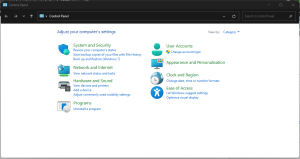
- Click System and Security → File History
- If Windows detects your drive, click Turn on
- If not detected, click Select drive, choose your external drive, click OK, then Turn on
File History starts backing up immediately and continues every hour when the drive is connected.
Configure Backup Frequency and Retention
- In File History window, click Advanced settings (left sidebar)
- Under “Save copies of files,” select frequency:
- Every hour (default, good balance)
- Every 10/15/20/30 minutes (if files change frequently)
- Every 3/6/12 hours or daily (for less critical data)
- Under “Keep saved versions,” choose:
- Until space is needed (recommended—automatically deletes oldest when drive fills)
- Forever (only if drive is large enough)
- Specific timeframe (1 month, 2 years, etc.)
- Click Save changes
In testing, hourly backups with “Until space is needed” retention provided good protection without manual maintenance.
Add Custom Folders to Backup
File History backs up your user Libraries (Documents, Pictures, Music, Videos), Desktop, Favorites, and Contacts by default. To add project folders stored elsewhere:
- Open File Explorer, navigate to the folder you want backed up
- Right-click the folder → Include in library
- Select existing library (Documents, Pictures, etc.) or click Create new library
- File History automatically backs up all library contents
Alternative method for folders outside user profile: Move or create symbolic links to bring them under your user folder where File History can reach them.
Encrypt Your Backup Drive (BitLocker)
If your laptop is lost or stolen with the backup drive connected, unencrypted backups expose all your data.
Windows 10/11 Pro, Enterprise, or Education:
- Open File Explorer, right-click your backup drive
- Select Turn on BitLocker
- Choose Use a password to unlock the drive
- Create strong password (15+ characters)
- Save recovery key (print or save to Microsoft account—don’t save on the same drive)
- Choose Encrypt used disk space only (faster for new drives)
- Select New encryption mode
- Click Start encrypting
Windows Home edition: BitLocker isn’t included. Options: use third-party encryption like VeraCrypt, purchase hardware-encrypted USB drive, or rely on physical security of the drive.
Setting Up OneDrive Folder Backup (Cloud Backup)
OneDrive comes free with Windows (5GB) or with Microsoft 365 subscription (1TB). It provides off-site protection without external hardware.
Enable Folder Backup
- Click the OneDrive cloud icon in system tray (bottom-right corner)
- Click Settings (gear icon) → Settings
- Go to Sync and backup tab
- Click Manage backup
- Toggle on folders you want backed up:
- Desktop
- Documents
- Pictures
- Click Save changes
OneDrive syncs these folders to the cloud continuously when you’re connected to internet. Files remain accessible offline and sync when connection returns.
Check Version History (File Recovery)
OneDrive keeps previous versions of files for 30 days (or longer with Microsoft 365).
- Right-click any file in synced folder
- Select Version history
- Browse previous versions by date
- Click Restore to revert or Open to view without changing current version
Storage limits: Free OneDrive provides 5GB. Microsoft 365 subscription (around $70-100 USD annually as of 2026, pricing varies by region) includes 1TB.
Setting Up Mac Time Machine (External Drive Backup)
Time Machine is Apple’s built-in backup solution for macOS. It creates hourly, daily, and weekly backups automatically.
Prepare External Drive
- Connect external drive to your Mac
- Open Disk Utility (Applications → Utilities → Disk Utility)
- Select your external drive from left sidebar (select the drive itself, not the volume under it)
- Click Erase button at top
- Set format:
- APFS (recommended for macOS 11 Big Sur and newer)
- Mac OS Extended (Journaled) (for macOS 10.15 Catalina and older)
- Name your drive (example: “TM-MacBook-2026”)
- Click Erase
Enable Time Machine
- Click Apple menu → System Settings (or System Preferences on older macOS)
- Select General → Time Machine (or just Time Machine on older versions)
- Click Add Backup Disk or the + button
- Select your prepared external drive
- Check Encrypt backups (strongly recommended)
- Create encryption password (save it securely—you’ll need it to restore)
- Check Back Up Automatically
- Click Use Disk
Time Machine begins first backup immediately (can take several hours). Subsequent backups are incremental and much faster.
Exclude Large Unnecessary Folders
- In Time Machine settings, click Options
- Click + to add exclusions
- Navigate to folders you want excluded:
- Virtual machines (VMware Fusion, Parallels files)
- Development dependencies (node_modules folders)
- Cache folders (~/Library/Caches)
- Large media working files (if backed up elsewhere)
- Click Exclude for each
- Click Done
According to Apple’s official Time Machine documentation, excluding unnecessary files speeds up backups and extends available storage for versions of critical files.
Time Machine Backup Schedule
Time Machine works on this automatic schedule:
- Hourly backups for the past 24 hours
- Daily backups for the past month
- Weekly backups for all previous months
When drive fills up, Time Machine deletes oldest backups first to make room for new ones.
Encrypt Existing Backup Drive
If you already have Time Machine running without encryption:
- Open Finder
- Right-click (Control + click) your Time Machine drive
- Select Encrypt “[Drive Name]”
- Create password and hint
- Encryption happens in background without erasing existing backups
How to Restore Files from Backup
Restore from Windows File History
Method 1: Right-click restore
- Navigate to folder where file used to exist
- Right-click folder (or right-click inside empty folder)
- Select Restore previous versions
- Choose version by date
- Click Restore to put it back, or Open to view first
Method 2: File History interface
- Open Control Panel → System and Security → File History
- Click Restore personal files
- Browse through backed-up folders by date using arrow buttons
- Select files or folders to restore
- Click green Restore button
Restore from Mac Time Machine
For individual files:
- Open the folder where file used to exist
- Click Time Machine icon in menu bar
- Select Enter Time Machine
- Use timeline on right edge or arrow buttons to go back in time
- When you find the file version you want, click it
- Click Restore button
For entire Mac restoration:
- Start Mac in Recovery Mode (hold Command + R during startup)
- Select Restore from Time Machine
- Choose your Time Machine backup disk
- Select backup date to restore from
- Follow prompts (this can take several hours)
Restore from OneDrive
- Open OneDrive folder in File Explorer
- Right-click file you want to restore
- Select Version history
- Choose version by date
- Click Restore or download specific version
Alternatively, visit onedrive.com in browser, navigate to file, click three dots → Version history.
Common Mistakes to Avoid
Mistake 1: Leaving Backup Drive Connected 24/7
When implementing automatic backups, I initially left the external drive connected permanently for convenience. This created two problems: drive wore out faster from constant spinning, and ransomware could encrypt both computer and backup simultaneously.
Better approach: Connect drive weekly for backups, then disconnect and store safely. Or rotate two drives—one connected for current backups, one stored off-site with last month’s backup.
For truly automated convenience with some safety, use drive that auto-powers down when idle, and ensure you have off-site backup (cloud or second drive elsewhere).
Mistake 2: Never Testing Restores
What didn’t work: Assuming backup system worked correctly without ever testing it. I discovered my Time Machine backups were failing silently due to drive errors only when I actually needed to restore a file.
Monthly test routine (5 minutes):
- Pick a random file from 2-4 weeks ago
- Restore it using your backup system
- Verify contents are correct
- Delete the test restore
Set a monthly calendar reminder: “Test backup restore.” This confirms backups are actually working before disaster strikes.
Mistake 3: Backing Up to Same Drive or Partition
Backing up to a different partition on the same physical drive provides zero protection against drive failure—the most common data loss scenario.
Wrong: C: drive (primary) backing up to D: drive (second partition on same physical disk)
Right: C: drive backing up to external USB drive (different physical hardware)
Mistake 4: Not Encrypting Portable Backup Drives
External drives are easier to lose or steal than laptops. An unencrypted backup drive contains everything: financial records, passwords, personal photos, work documents.
Always encrypt:
- Windows: BitLocker (Pro/Enterprise) or VeraCrypt (all versions)
- Mac: Built-in drive encryption (enable when adding to Time Machine, or encrypt afterward)
Mistake 5: Ignoring Storage Warnings
Backup drives eventually fill up. If you ignore “backup disk almost full” warnings, backups stop working and you lose protection without realizing it.
Solutions:
- Let Time Machine or File History auto-delete oldest backups (default behavior)
- Exclude unnecessary large folders (VMs, build folders, temp files)
- Upgrade to larger backup drive (2TB drives are affordable as of 2026)
- Archive very old backups to separate long-term storage
Pro Tips From Experience
Tip 1: Label Your Backup Drives Clearly
Use descriptive labels both on physical drives and in software:
- Good: “TM-MacBook-2026” or “FileHistory-WorkLaptop-A”
- Bad: “Backup” or “External Drive”
When you have multiple drives or rotate backups, clear labeling prevents confusion about which drive contains what.
Tip 2: Keep One Backup Copy Off-Site
Fire, flood, and theft can destroy both your computer and backup drive if they’re in the same location.
Off-site options:
- Cloud backup (OneDrive, Google Drive, iCloud)
- Second external drive stored at office, friend’s house, or bank safe deposit box
- Rotate drives monthly: swap the one at home with the one kept elsewhere
Even small amounts of critical data backed up off-site dramatically improves disaster recovery chances.
Tip 3: Organize Files Before Backing Up
Restoring from backup is much easier when files were organized clearly in the first place.
Before setting up backups:
- Move important files out of Downloads folder into proper locations
- Organize Documents by project or year
- Name files descriptively (not “Document1” or “Final_Final_v3”)
- Delete obvious junk and duplicates
See simple folder structure guide for organization systems that make backups and restores painless.
Tip 4: Document Your Backup System
If disaster strikes, you’ll be stressed. Having written instructions helps.
Create a simple text file with:
- Which backup system you use (File History, Time Machine, etc.)
- Where backup drives are stored
- Encryption passwords (stored securely, not in plain text on computer)
- Steps to restore files
- Last tested date
Save this in cloud storage (OneDrive, Google Drive, iCloud) so it’s accessible even if computer is lost.
Tip 5: Use Cloud Backup for Critical Files Only
Free cloud storage (5-15GB) isn’t enough for everything. Prioritize what goes to cloud:
High priority for cloud backup:
- Current project files
- Financial documents
- Irreplaceable photos (family, important events)
- Work documents in active use
Lower priority (use external drive instead):
- Complete photo library (thousands of images)
- Video files (very large)
- Old archived projects
- Software installers
Troubleshooting Backup Issues
File History doesn’t see my external drive
Solutions: Try different USB port, verify drive is formatted as NTFS (File History doesn’t work with exFAT or FAT32), check cable connection, restart File History Service (Services app → File History Service → Restart).
File History not backing up specific folder
File History only backs up Libraries, Desktop, Favorites, and Contacts. Add custom folders to a Library: right-click folder → Include in library → select or create library.
OneDrive says “not enough space” for folder backup
Free OneDrive provides 5GB. Either upgrade storage, back up only most critical folders (Documents but not Desktop and Pictures), or use external drive backup instead for large files.
Time Machine says backup disk is full
This is normal—Time Machine automatically deletes oldest backups to make room. If happening too frequently: exclude large unnecessary folders (Options → exclude), or upgrade to larger backup drive.
Time Machine backup taking forever
First backup can take 8+ hours for laptops with lots of data. Subsequent backups are incremental (only changed files) and much faster—usually 5-20 minutes. Exclude large folders you don’t need backed up to speed this up.
Can’t find file in Time Machine even though backup ran
Check if folder containing that file was excluded from backups (Time Machine → Options → check exclusion list). Also verify file wasn’t in a temp directory that’s excluded by default.
Backup drive shows errors or won’t mount
Run disk check: Windows (right-click drive → Properties → Tools → Check), Mac (Disk Utility → First Aid). If drive shows hardware errors, stop using it for backups immediately and get replacement—don’t trust failing drive with your only backup.
Frequently Asked Questions
How much storage do I need for backup drive?
Minimum: match your computer’s used storage (if using 300GB, get 500GB backup drive). Recommended: 2-3x your used storage for multiple versions and room for growth. As of 2026, 1-2TB external drives are affordable for most users.
Can I use same external drive for both Windows and Mac backups?
Not recommended. Windows File History needs NTFS formatting, Mac Time Machine needs APFS or Mac OS Extended. These aren’t compatible. Use separate backup drives, or partition one large drive (but partitioning complicates things).
What’s better: cloud backup or external drive backup?
Use both if possible. External drive: faster backup and restore, more storage for less cost, works offline. Cloud: off-site protection (fire/theft), accessible anywhere, automatic. Ideal setup: external drive for complete backup, cloud for critical files.
Do backups slow down my computer?
Minimal impact. File History and Time Machine run in background at low priority. You might notice brief slowdown during active backup, but hourly incremental backups only copy changed files (usually completes in 2-10 minutes).
How long do backed-up file versions stay available?
Windows File History: depends on settings—default is “until space is needed” (months to years). OneDrive: 30 days for free accounts, longer with Microsoft 365. Mac Time Machine: hourly for 24 hours, daily for month, weekly until drive fills.
Can ransomware encrypt my backup drive too?
If drive is connected: potentially yes. Best practice: disconnect backup drive when not actively backing up, or use network-attached storage with versioning that ransomware can’t reach. Cloud backup with version history provides additional protection since ransomware can’t delete old cloud versions.
Should I back up before major OS updates?
Absolutely. Major OS updates (Windows 11 24H2, macOS Sequoia, etc.) can occasionally cause issues. Having fresh backup right before update lets you restore everything if update fails or causes problems.
Can I back up to network drive instead of external USB?
Yes. Both File History and Time Machine support network drives (NAS devices, network-attached drives). Setup is similar—just select network location instead of USB drive. Network backup is convenient but slower than direct USB connection.
Start Your Automatic Backup Today
The best backup system is the one you’ll actually use. Start simple today rather than planning the perfect system you never implement.
This week’s action plan:
- Get one external drive (2TB recommended, budget $50-80 USD as of 2026)
- Spend 10 minutes setting up File History (Windows) or Time Machine (Mac)
- Enable encryption on the backup drive
- Set monthly calendar reminder to test a restore
- Next month: add cloud backup for critical folders
You can’t predict when you’ll need your backup—hard drives fail, files get deleted, ransomware happens. But you can guarantee that when disaster strikes, you’ll have a recent, tested, encrypted backup ready to restore.
Suggested Guides You Should Check: