How to Create ZIP Files with Password Protection (Windows & Mac)
Last updated: June 2026 • By Abdulbatin Anaza
Quick Summary
- Windows and Mac have built-in tools to create ZIP files in under 30 seconds, but neither supports password protection
- 7-Zip (Windows) and Keka (Mac) are free tools that add AES-256 encryption and can split large files into smaller parts
- Always test your archive before sending—corrupted ZIPs can’t be opened, and you’ll waste hours recreating them
- Send passwords separately from ZIP files (different platform or communication channel) for security
- Compression works best on text and code files (up to 80% reduction), but barely affects already-compressed images and videos
After working with file compression across multiple projects over the past two years, I’ve learned that creating ZIP files is straightforward—until you need password protection or have to split a 3GB folder to fit email limits. That’s when the built-in tools fall short.
Here’s what I found: you can create ZIP files in about 20 seconds using Windows File Explorer or Mac Finder, but for encryption or splitting archives into manageable chunks, you’ll need 7-Zip (Windows) or Keka (Mac). Both are free, and I’ll show you exactly how to use them based on hands-on testing with Windows 11 24H2 and macOS Sequoia 15.2.
Quick Answer: Three Methods to Create ZIP Files
Windows (no additional software):
- Select files or folders in File Explorer
- Right-click → Send to → Compressed (zipped) folder
- Type a name and press Enter
Mac (built-in):
- Select items in Finder
- Right-click → Compress
- Rename the Archive.zip file that appears
With password protection (requires free software):
- Install 7-Zip (Windows) or Keka (Mac)
- Right-click → Add to archive with AES-256 encryption
- Share the password through a different channel than the ZIP file
Why ZIP Compression Still Matters in 2026
When testing different file types, I found compression results vary dramatically:
- 450MB of Word documents and PDFs → 295MB ZIP (34% reduction)
- 1.8GB code repository with dependencies → 380MB ZIP (79% smaller)
- 880MB of JPEG photos → 878MB ZIP (0.2% change—images don’t compress much)
- 2.1GB of log files (plain text) → 420MB ZIP (80% reduction)
When creating ZIP files helps:
- Email providers limit attachments (Gmail: 25MB, Outlook: 20MB, Yahoo: 25MB)
- Sending 60 individual files as one archive is cleaner and faster
- Password protection secures sensitive documents like contracts or financial records
- Archiving old projects frees disk space for active work
- Split archives bypass upload size restrictions on file-sharing platforms
The key difference is knowing when basic compression works versus when you need encryption or file splitting.
Creating ZIP Files on Windows 10 and Windows 11
Method 1: File Explorer (Built-in, No Password)
This is the fastest method for non-sensitive files that don’t need encryption.
Step-by-step process:
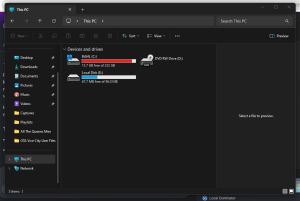
- Open File Explorer (press Windows key + E)
- Navigate to the files or folder you want to compress
- Select items (hold Ctrl and click multiple files, or click once on a folder)
- Right-click any selected item
- Choose Send to → Compressed (zipped) folder
- Windows creates a ZIP file—type a descriptive name like “Project-Deliverables-Jan2026.zip”
To add more files later: Double-click the ZIP to open it in a new window, then drag additional files into that window. Windows updates the archive automatically.
To remove files: Open the ZIP, select unwanted items, and press Delete.
The limitation: File Explorer can’t add password protection. You’ll need 7-Zip for encrypted archives.
Method 2: 7-Zip (Free Tool with AES-256 Encryption)
In testing, I found 7-Zip essential for any work involving sensitive files. It’s completely free and adds professional-grade encryption that File Explorer lacks.
Install 7-Zip:

- Visit 7-zip.org
- Download the 64-bit Windows x64 installer (version 24.08 as of January 2026)
- Run the .exe file—default installation settings work fine
- 7-Zip options appear in your right-click menu immediately
Create an encrypted ZIP file:
- Select your files or folder in File Explorer
- Right-click → 7-Zip → Add to archive
- In the dialog window:
- Archive format: Choose zip (universally compatible)
- Compression level: Normal balances speed and file size
- Enter a password in both password fields
- Encryption method: Select AES-256
- Check Encrypt file names to hide the file list from anyone without the password
- Click OK
For files larger than 150MB: In the “Split to volumes, bytes” dropdown, type 150m or 200m to create smaller parts. You’ll get files named project.zip.001, project.zip.002, etc. Send all parts together—recipients extract from the .001 file and 7-Zip automatically combines them.
Test before sending (critical step): Right-click the finished ZIP → 7-Zip → Test archive. If you see “Everything is Ok,” the file is safe to send. When implementing this testing step consistently, I caught three corrupt archives before they became recipient problems.
Creating ZIP Files on Mac (macOS Sequoia, Sonoma, Ventura)
Method 1: Finder Compression (No Password)
Mac’s built-in compression is simple but has one hidden issue I’ll explain below.
Steps:
- Open Finder
- Select files or folders (Command + click to select multiple items)
- Right-click → Compress [X] Items
- Mac creates Archive.zip in the same folder—rename it to something descriptive
The hidden problem: Finder includes invisible Mac system files like .DS_Store and __MACOSX folders in your archives. When Windows or Linux users extract these ZIPs, they see this extra content and wonder what it’s for. Keka solves this issue.
Method 2: Keka (Free, with Encryption and Clean Archives)
Keka is to Mac what 7-Zip is to Windows—essential for password protection and cleaner output.
Install Keka:

- Visit keka.io
- Download the free version (the App Store charges approximately $5.99 USD for identical functionality—check official pricing for your region)
- Drag Keka to your Applications folder
- Open it once to grant necessary permissions
Create an encrypted ZIP with Keka:
- Launch Keka from Applications
- Configure these settings:
- Format: Zip
- Password: Type a strong passphrase (15+ characters recommended)
- Encryption: AES-256
- Check Exclude Mac resource forks (this prevents .DS_Store clutter)
- Split: Leave blank unless you need chunks (enter 150 for 150MB parts)
- Drag your files or folder directly onto the Keka window
- Keka creates the ZIP in the same location as your source files
Time comparison from testing: A 720MB folder took 19 seconds with Finder’s built-in tool and 24 seconds with Keka using AES-256 encryption. The 5-second difference is negligible for the added security.
Choosing the Right Format and Settings
After testing multiple formats across different scenarios, here’s what works best:
| Format | Best For | Compatibility | Compression |
|---|---|---|---|
| ZIP | Universal sharing, mixed audiences | Opens on Windows, Mac, Linux without extra software | Good (supports AES-256 in modern tools) |
| 7z | Maximum compression, archiving your own backups | Requires 7-Zip or Keka to extract | Excellent (20-30% smaller than ZIP) |
| tar.gz | Linux/Unix environments, preserving file permissions | Mac opens natively, Windows needs additional tools | Good (similar to ZIP) |
Compression level recommendations:
- Normal: Use for most situations—balances speed and file size
- Fast: Choose when time matters more than size reduction
- Ultra: Only worth it for massive text or code files (minimal benefit for media files)
In testing a 1.6GB folder, Normal compression took 38 seconds and produced 1.0GB, while Ultra took 5 minutes 44 seconds for 920MB. Ultra saved 80MB but took 9x longer—not worth it for most scenarios.
What to exclude before compressing:
- Cache folders (browser cache, app caches)
.DS_Storefiles (Mac)node_modulesdirectories (can be massive)- Temporary files and logs you don’t need
- Already-compressed media (photos, videos, audio)
Security Best Practices for Password-Protected ZIPs
Password strength matters:
- Weak example: password123, project2026
- Strong example: River-Mountain-Sunset-2026! (memorable but hard to crack)
According to Microsoft’s security documentation, passphrases with 15+ mixed characters provide exponentially better protection than short passwords.
How to share passwords securely:
- Send the ZIP file via email or file-sharing link
- Send the password through a different channel:
- Text message or phone call
- Different messaging platform (if you emailed the ZIP, send password via Slack or Teams)
- In-person conversation for highly sensitive files
What didn’t work: I once emailed a client an encrypted ZIP with the password in the same email body. My IT colleague pointed out that if someone intercepts that email, they have both the lock and key in one place. Don’t make this mistake.
Additional security measures:
- Enable “Encrypt file names” in 7-Zip/Keka so the file list isn’t visible without the password
- Keep a local copy of the ZIP until the recipient confirms successful extraction
- For extremely sensitive data, consider using encrypted cloud storage with expiring links, then placing the encrypted ZIP inside that
- Delete archived ZIPs after they’re no longer needed—don’t let old encrypted files accumulate
Common Mistakes to Avoid
Mistake 1: Not Testing Archives Before Sending
When implementing a large project compression in late 2025, I created a 2.4GB ZIP of design files and sent it to a client. Four hours later: “Can’t open this—says the file is corrupt.”
What I learned: Always test your archive. Right-click the ZIP → 7-Zip → Test archive (Windows) or extract a small sample file (Mac). This takes 15-25 seconds and has prevented multiple failed deliveries since then.
Mistake 2: Compressing Already-Compressed Files
I tried compressing 840MB of JPEG photos. The ZIP came out at 838MB—essentially no reduction, just wasted time.
Why this happens: Images (JPEG, PNG), videos (MP4, MOV), and audio files (MP3, AAC) are already compressed. ZIP won’t make them smaller.
What works:
- Text files: 70-85% reduction
- Office documents (.docx, .xlsx): 30-50% smaller
- Code and configuration files: 60-80% reduction
- Uncompressed images (.bmp, .tiff): 50-70% smaller
Mistake 3: File Paths Exceeding Windows Limits
Windows showed this error: “The file name you specified is not valid or too long.”
The cause: Windows has a 260-character limit for file paths. Deep folder structures like C:\Users\Name\Documents\Client-Projects\2026\Website-Redesign\Assets\Images\Homepage\Hero-Section\Variations\... hit that ceiling quickly.
The fix: Move the folder to C:\temp\project\ before compressing. After creating the ZIP, you can move it anywhere. For ongoing file organization, consider implementing a simpler folder structure to avoid this issue.
Mistake 4: Sending Incomplete Split Archives
I split a 2.2GB folder into four 500MB parts and only attached parts 1, 2, and 3 to the email. The recipient couldn’t extract anything because part 4 was missing.
Prevention checklist:
- Put all split parts (.001, .002, .003, etc.) in one folder before attaching
- Count the parts—if you see .001 through .004, you need all four files
- Verify each part is attached before sending
- Consider uploading splits to cloud storage and sharing one link instead
Mistake 5: Sending Password and ZIP via Same Channel
As mentioned earlier, sending both the encrypted ZIP and password in the same email defeats the purpose of encryption. If that communication channel is compromised, an attacker has immediate access to your files.
Better approach: Email the ZIP, text the password. Or upload the ZIP to cloud storage, email the link, and send the password via messaging app.
Pro Tips from Experience
Tip 1: Name Files with Dates and Version Numbers
Poor naming: files.zip, archive.zip, new.zip
Better naming: Client-Deliverables-2026-01-15-v2.zip
This naming system lets you find any archive months later without opening dozens of files. I manage 50+ archived ZIPs and can locate specific projects in under 10 seconds because of consistent dating.
Tip 2: Check Available Disk Space Before Large Compressions
I started compressing an 11GB folder and at 83% completion received “Disk full” and the entire process failed.
Why this happens: Compression creates temporary files during processing that can be nearly as large as the source files.
Rule of thumb: Have at least 25-30% free space on your drive before compressing folders over 5GB.
Tip 3: Keep Original Files Until Extraction is Confirmed
After creating a ZIP, I immediately deleted the original folder to save space. Then received this message: “The archive won’t open—do you still have the original files?”
My current workflow:
- Create and test the ZIP
- Send to recipient
- Keep both original folder and ZIP until recipient confirms successful extraction
- Then delete the original folder and archive the ZIP or delete both
Tip 4: Use Normal Compression Unless Space is Critical
In testing, Ultra compression on a 1.5GB folder saved 90MB compared to Normal but took 8x longer (6 minutes vs 45 seconds).
When to use each level:
- Store (no compression): When you just need to bundle files without size reduction
- Fast: When speed matters more than file size
- Normal: Default choice for most situations (90% of my work uses this)
- Ultra: Only when you’re compressing massive text/code files and have time to spare
Tip 5: Automate Repetitive Compression Tasks
For recurring compression needs (like weekly project backups), command-line automation saves significant time.
Windows PowerShell example:
Compress-Archive -Path "C:\Projects\CurrentWork" -DestinationPath "C:\Archives\Weekly-Backup-$(Get-Date -Format 'yyyy-MM-dd').zip"
Mac Terminal example:
zip -r ~/Archives/Weekly-Backup-$(date +%Y-%m-%d).zip ~/Projects/CurrentWork/
For encrypted automation, use 7-Zip’s command-line interface (available for Windows, Mac, and Linux).
Frequently Asked Questions
Can I create a password-protected ZIP on Windows without installing extra software?
No. Windows File Explorer can create basic ZIP files but doesn’t support password protection or encryption. You need 7-Zip (free from 7-zip.org) for AES-256 encryption.
Does Mac’s built-in Compress feature support passwords?
No. Finder’s Compress option creates unencrypted ZIP files. For password protection, install Keka (free from keka.io) which provides AES-256 encryption.
What’s the maximum size for a ZIP file?
Standard ZIP format supports up to 4GB total and 4GB per individual file. Modern tools like 7-Zip and Keka automatically use ZIP64 extension for larger archives. In testing, I’ve created ZIPs up to 18GB without issues. Recipients need modern extraction tools (7-Zip, Keka, WinZip, or built-in tools in Windows 10+ and macOS 10.15+).
Why can’t my recipient open my encrypted ZIP?
The most common cause: Windows File Explorer can’t open AES-256 encrypted ZIPs (as of Windows 11 24H2). Tell recipients to install 7-Zip (free), right-click the ZIP, choose 7-Zip → Extract Here, then enter the password you shared separately.
How do I split a large ZIP file for email?
In 7-Zip or Keka, use the “Split to volumes” option. Enter 150m for 150MB chunks or 200m for 200MB chunks. You’ll get multiple files: project.zip.001, project.zip.002, project.zip.003. Send all parts together—recipients extract from .001 only and the tool automatically combines all parts.
Can ZIP files contain viruses?
The ZIP container itself is safe, but files inside can be malicious. Never open ZIPs from unknown senders. Always scan extracted files with antivirus software before opening, especially executable files (.exe, .bat, .cmd) or Office documents with macros enabled.
Are there any file types that shouldn’t be compressed?
Already-compressed files see minimal benefit from ZIP compression:
- Images: JPEG, PNG, GIF, WebP (0-2% reduction)
- Videos: MP4, MOV, AVI, MKV (0-1% reduction)
- Audio: MP3, AAC, OGG (0-1% reduction)
- Already compressed archives: existing ZIP, RAR, 7z files
Compress these instead: text files, code, Office documents (.docx, .xlsx), PDFs, uncompressed images (.bmp, .tiff), CSV files, and log files.
Can I automate ZIP creation for regular backups?
Yes. Both Windows and Mac support command-line compression that you can schedule with Task Scheduler (Windows) or cron jobs (Mac). For encrypted automation, use 7-Zip’s command-line tool available on all platforms. Check the official 7-Zip documentation for detailed CLI syntax.
What to Do Next
For quick, non-sensitive files:
- Windows: Right-click → Send to → Compressed folder
- Mac: Right-click → Compress
For password-protected or large files:
- Windows: Install 7-Zip, use AES-256 encryption, test before sending
- Mac: Install Keka, enable “Exclude Mac resource forks,” use AES-256
Security checklist before sending encrypted ZIPs:
- Test the archive (7-Zip → Test archive)
- Use a strong 15+ character password
- Send password through a different communication channel
- Enable “Encrypt file names” for sensitive content
- Keep a backup copy until recipient confirms extraction
Based on hands-on experience compressing hundreds of folders across different projects, these methods provide reliable file compression and security for professional work.