Use Google Docs Offline (Desktop & Mobile): Work Without Internet and Sync Safely
Last updated: June 2026 • By Abdulbatin Anaza
Key Takeaways
- Google Docs offline requires the Chrome browser extension plus toggling “Available offline” for each file—setup takes 5 minutes but must happen while you still have internet
- Only native Google files (Docs, Sheets, Slides) support full offline editing; PDFs and Office files need conversion to Google format or Drive for desktop sync for offline access
- Edits save locally and queue for sync—if you lose connection mid-edit, keep the tab open and changes will upload automatically when you reconnect (closing the tab risks losing queued edits)
- Mobile apps (Docs, Sheets, Slides) handle offline differently than browser—toggle “Available offline” per file in the app, then access from the app’s Offline section, not from Drive
- Sync conflicts happen when multiple people edit offline simultaneously; Google creates a “(Conflicted copy)” file you’ll need to merge manually using version history
After working on client proposals during a cross-country flight with no Wi-Fi, I learned that assuming Google Docs offline “just works” leads to panic at 35,000 feet. The file I needed wasn’t cached, the extension wasn’t installed, and I ended up drafting in a plain text editor then rebuilding formatting after landing.
Here’s what actually works: a deliberate setup before you lose internet. Enable the Google Docs Offline extension in Chrome, turn on offline mode in Drive settings, and manually toggle “Available offline” for each critical file while you still have connection. On mobile, use the Docs/Sheets/Slides apps and mark files offline individually. This setup takes about 10 minutes but makes editing reliable during flights, commutes, or anywhere internet drops. I’ll show you the exact steps for desktop browsers, Drive for desktop, and mobile apps, plus how to avoid sync conflicts and manage storage.
What Google Docs Offline Actually Covers (And Limitations)
Google Docs offline isn’t automatic backup for everything in your Drive. It’s selective caching of specific file types with clear boundaries.
Full offline editing works for: Google Docs (.gdoc), Google Sheets (.gsheet), and Google Slides (.gslides). You can create new files, edit existing ones, add comments, use Suggesting mode, insert tables, and format text—all without internet.
View-only or requires workarounds: PDFs, images, Microsoft Word/Excel/PowerPoint files, and other non-Google formats. You can view these offline if synced through Drive for desktop, but you can’t edit them directly. To edit a Word doc offline, convert it to Google Docs format first (right-click → Open with → Google Docs).
Collaboration limitations: You can edit while offline, but collaborators won’t see your changes until you reconnect and sync completes. Comments you add offline won’t notify recipients until you’re back online.
Features that need internet: Explore suggestions, most add-ons, link previews, advanced grammar checking, Smart Compose, downloading fonts not cached locally, and sharing files with new people.
In testing offline mode across multiple projects, the biggest surprise was that toggling “Available offline” on a folder doesn’t always cache every file inside—you often need to open each file once while online to seed the local cache properly.
Requirements and Setup Paths (Choose Your Device)
Pick the method that matches where you work. Most people need the browser setup for quick edits and Drive for desktop for broader file access.
Desktop Browser (Chrome or Edge – Recommended for Speed)
This is the fastest path to reliable Google Docs offline editing. Works on Windows 11, macOS Sequoia, ChromeOS, and Linux with Chrome-based browsers.
Requirements: Google Chrome (version 115+) or Microsoft Edge (Chromium-based, version 115+), at least 2GB free disk space, and a personal Google account or Workspace account with offline enabled by admin.
Drive for Desktop App (Windows and Mac)
Use this when you need offline access to many files including PDFs, images, and Office documents—not just Google Docs offline for native files.
Requirements: Windows 10/11 or macOS Monterey/Ventura/Sequoia, 10GB+ free disk space recommended for mirroring, background sync enabled.
Mobile Apps (Android and iOS)
Separate apps for Docs, Sheets, and Slides handle offline individually. Simpler than desktop but more manual file selection.
Requirements: Android 9+ or iOS 15+, Google Docs/Sheets/Slides apps (version 1.24+), sufficient storage for cached files.
Enable Google Docs Offline in Browser (Chrome or Edge)
This setup takes about 5 minutes and works reliably once configured. Don’t skip any step—each one matters.
Step 1: Install the Google Docs Offline Extension
Open the Chrome Web Store page for Google Docs Offline (the official extension from Google).
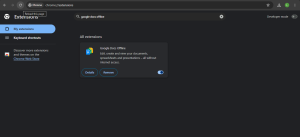
Click Add to Chrome (works identically in Microsoft Edge). Confirm when prompted.
You’ll see a brief “Extension added” notification. The extension has no visible icon—it works in the background to enable offline caching.
For managed Workspace accounts: If the extension won’t install, your IT admin may need to allowlist it. Ask them to enable “Google Docs Offline” in the Admin console under Apps → Google Workspace → Drive and Docs → Features and Applications.
Step 2: Turn On Offline Mode in Google Drive
Go to drive.google.com and sign in (make sure you’re using Chrome or Edge).
Click the gear icon (top-right) → Settings.
Under the General tab, find the Offline section. Check the box: “Create, open and edit your recent Google Docs, Sheets and Slides files on this device while offline.”
Wait 10-20 seconds while Drive prepares offline mode. You’ll see a brief “Setting up offline” message.
If the offline checkbox is greyed out or missing, the extension isn’t installed correctly, you’re in Incognito mode (offline doesn’t work there), or your admin disabled it.
Step 3: Mark Specific Files Available Offline
Enabling offline mode in settings doesn’t automatically cache all your files. You must manually mark which ones you need.
For individual files: In Google Drive, right-click any Doc, Sheet, or Slide → toggle Available offline. A checkmark appears next to the file.
For entire folders: Right-click a folder → Available offline. This caches all supported files inside, but it can consume significant storage—use sparingly and only for critical project folders.
From inside an open file: While editing a Doc/Sheet/Slide, click File → Make available offline (exact wording varies slightly by interface version in 2026).
Important: Open each critical file at least once while online after toggling offline. This seeds the local cache. Just toggling the switch doesn’t always download the file immediately.
Step 4: Test Offline Access
Turn off Wi-Fi or disconnect your ethernet cable.
In Chrome, visit drive.google.com. You’ll see a simplified offline view showing your available offline files.
Or go directly to docs.google.com, sheets.google.com, or slides.google.com. Your recent offline files appear in the file list.
Open a file and make an edit. Changes save locally (you’ll see “All changes saved to Drive” even offline—they queue for sync).
Reconnect to internet. Within seconds, your edits sync to the cloud. Check from another device to confirm.
Helpful resource: Google’s official offline guide
Set Up Drive for Desktop (Windows 11 and macOS)
Drive for desktop integrates Google Drive into File Explorer (Windows) or Finder (Mac), giving you offline access to any file type—not just Google Docs offline for native formats.
Step 1: Install Drive for Desktop
Download the installer from Google’s Drive for desktop page.
Run the installer and sign in with your Google account. For multiple accounts, you can add them all during setup.
Step 2: Choose Streaming vs Mirroring
During setup, you’ll choose how files appear on your computer:
Stream files (default): Files live in the cloud and download on-demand when you open them. Saves local disk space. You can mark specific files/folders “Available offline” for offline access.
Mirror files: Google Drive syncs completely to a local folder. Everything is available offline automatically, but uses significantly more disk space (equal to your Drive storage).
What works for most people: Start with streaming and selectively mark important folders offline. This pairs well with the browser method for Google Docs offline while keeping other files accessible when needed.
Step 3: Mark Files Available Offline
Open File Explorer (Windows) or Finder (Mac). You’ll see “Google Drive” in the sidebar (it appears as a mounted drive).
Navigate to any file or folder. Right-click → Offline access → Available offline (exact wording varies by Drive version).
A checkmark or cloud icon with a green check indicates the item is cached locally. Changes sync automatically when you reconnect.
Storage warning: A single folder with hundreds of high-resolution images can consume 5-10GB. Monitor your available disk space, especially on laptops with smaller SSDs.
When to Combine Browser Offline + Drive for Desktop
Use Drive for desktop when you need offline access to PDFs, images, videos, or Microsoft Office files.
Use the browser method for fast, lightweight Google Docs offline editing without syncing your entire Drive.
Both can run simultaneously. I use Drive for desktop (streaming mode) for client asset folders and browser offline for active documents—this keeps my laptop’s 256GB SSD from filling up.
Enable Google Docs Offline on Mobile (Android and iOS)
Mobile apps handle offline differently than desktop browsers. Each app (Docs, Sheets, Slides) manages its own offline files.
Make Individual Files Available Offline
Open the Google Docs app (or Sheets/Slides). You need all three apps installed separately if you work with all three file types.
Find the file you want offline. Tap the three-dot menu next to it → Available offline. A small pin or checkmark icon appears.
To access offline files later: Open the app → tap the menu icon (☰) → Offline. All your cached files appear here.
Make Entire Folders Available Offline (Google Drive App)
Open the Google Drive app (different from Docs/Sheets/Slides apps).
Find the folder you need. Tap the three-dot menu → Available offline.
The app downloads all supported files (Docs, Sheets, Slides). Other file types appear but may not be fully editable offline.
Storage consideration: A folder with 50 documents might use 100-200MB. A folder with embedded images or Slides decks can easily hit 1-2GB. Check your device’s available storage before caching large folders.
Test Mobile Offline Access
Enable airplane mode on your phone or tablet.
Open the Docs/Sheets/Slides app → tap the menu → Offline.
Open a file and make an edit. The app shows “Saving…” then “All changes saved in Drive” (even offline—it’s queued locally).
Disable airplane mode. Within 10-30 seconds, edits sync. Check from your desktop browser to confirm.
How Offline Editing and Sync Actually Work (Behind the Scenes)
Understanding the sync flow prevents panic when things look weird offline.
Local Caching and Edit Queuing
When you mark a file “Available offline,” Google downloads the current version plus a small database of edit operations (insertions, deletions, formatting changes).
While offline, your edits save to this local database as a queue of operations. The file appears as “saved” because it’s saved locally—not yet synced to the cloud.
When you reconnect, Google uploads the edit queue and merges it with any changes others made while you were offline.
Conflict Resolution (When Multiple People Edit Offline)
If you and a collaborator both edit the same paragraph offline, Google attempts automatic merge when you both reconnect.
In most cases, non-overlapping edits merge cleanly. If edits conflict (you both changed the same sentence), Google creates a “(Conflicted copy)” version.
You’ll see two files: the original with the most recent sync, and “Document name (Conflicted copy)” with your offline changes. You must manually merge them using version history.
This happened to me during a team sprint when three of us edited different sections offline. Two merged fine; one created a conflicted copy because we’d both edited the introduction. We used File → Version history → See version history to compare and manually merge.
Version History Works Offline Too
All edits—online or offline—appear in File → Version history with timestamps.
Pro move: Before going offline (like before a flight), create a named version: File → Version history → Name current version → “Pre-flight draft.” If sync gets messy, you have a clean restore point.
Helpful resource: Google’s version history guide
Common Mistakes to Avoid
Mistake 1: Assuming “Offline Mode” Caches Everything Automatically
When I first enabled offline in Drive settings, I assumed all my starred files would work offline. They didn’t. Only files I explicitly toggled “Available offline” were cached.
The fix: Enabling offline in settings just activates the feature. You must manually mark each file or folder. Before traveling, go through your critical files and toggle them individually.
For mobile, this is especially important—the Drive app’s offline toggle and the Docs app’s offline toggle are separate. A file marked offline in Drive might not appear in the Docs app’s Offline section until you toggle it there too.
Mistake 2: Working on Shared Files Without Warning Collaborators
Edited a shared proposal offline during a flight. A teammate edited the same file online simultaneously. When I landed, Google created a conflicted copy and we spent 20 minutes merging.
The fix: Before going offline with a shared file, send a quick message: “I’ll be editing the proposal offline for the next 3 hours—please hold edits until I sync.” Or duplicate the file, work offline on your copy, then manually merge later.
For critical documents, use Suggesting mode instead of direct edits. Suggestions queue offline and appear as trackable changes when you sync—easier to review and merge.
Mistake 3: Closing the Browser Tab Before Sync Completes
Made extensive edits offline, reconnected, saw “Syncing…” in the status bar, thought it looked fine, and closed the tab immediately. Half my edits didn’t upload.
The fix: After reconnecting, keep the tab open until you see “All changes saved to Drive” with no spinning icon. Sync can take 30 seconds to 2 minutes for large documents with many edits.
If you must close the browser, wait at least 60 seconds after reconnecting. Open the file from another device to verify edits appear.
Mistake 4: Filling Your Disk With Offline Files
Marked an entire client project folder (3GB of files) as offline on a laptop with 15GB free space. Within days, the laptop slowed to a crawl and offline sync started failing.
The fix: Be selective. Mark only files you’ll actively edit this week. For reference materials (old proposals, archives), leave them online-only.
On mobile, check Settings → Storage regularly. If the Docs/Sheets/Slides apps are consuming 2GB+, go to the app’s settings and Clear offline files, then re-download only current projects.
Mistake 5: Using Offline on Shared or Public Computers
Enabled offline on a hotel business center computer, finished my work, and left. My cached documents stayed on that computer until someone manually cleared browser data.
The fix: Don’t use offline mode on shared devices. If you must, sign out of Chrome completely when done (Chrome menu → Sign out → check “Clear data”). Better: use your own laptop or tablet for offline work with sensitive files.
Pro Tips From Experience
Tip 1: Prepare a Pre-Flight Checklist
Before any flight or trip to a low-connectivity area, run through this 5-minute routine:
- Open each critical file while online (seeds the cache properly)
- Toggle “Available offline” for all files you’ll need
- Create a named version in key documents: File → Version history → Name current version (“Pre-trip backup”)
- Star the most important files for quick offline access
- Test: turn off Wi-Fi, open docs.google.com, confirm files appear
This prevents the “I thought it would work” panic at 35,000 feet.
Tip 2: Use Offline for Distraction-Free Writing
One unexpected benefit of Google Docs offline: no internet means no distractions. No chat notifications, no email pop-ups, no temptation to “quickly check” something.
I started deliberately turning off Wi-Fi during deep writing sessions even when connection is available. Open the doc, disconnect, and write for 90 minutes without interruption. Edits sync when you reconnect.
Pair this with Pomodoro-style focus sprints for maximum productivity.
Tip 3: Keep a Local Backup for Mission-Critical Presentations
Google Docs offline is reliable, but if you’re presenting in a location with no internet and no backup plan, you’re taking a risk.
Safety net: Before the trip, export critical presentations and documents: File → Download → Microsoft PowerPoint (.pptx) or PDF. Store the export on your local drive or USB stick.
You’ll present from Google Slides offline 99% of the time, but the local export is insurance for the 1% edge case where caching fails or your device glitches.
Tip 4: Combine Offline Docs With Local Note-Taking Apps
For brainstorming or quick capture when you’re unsure if offline will work, keep a local backup app ready: Apple Notes (syncs via iCloud), Microsoft OneNote (syncs via OneDrive), or a plain text editor.
Draft rough ideas locally, then copy into Google Docs when you reconnect. This hybrid workflow gives you a safety net without relying 100% on Google Docs offline for every scenario.
Tip 5: Monitor Battery Life During Long Offline Sessions
Editing locally still consumes CPU and battery. A 6-hour flight editing a complex spreadsheet can drain a laptop quickly.
Lower screen brightness, close unnecessary apps, and bring a portable charger or power bank for tablets/phones. If your device dies mid-edit, queued changes might not save (though Google usually recovers them when you reopen).
Manage and Free Up Offline Storage
Offline files accumulate. Here’s how to reclaim space without losing access to files you actually need.
Remove Files You No Longer Need Offline
Desktop browser: Go to drive.google.com → right-click any file/folder previously marked offline → toggle Available offline off. The file stays in Drive but removes the local cache.
Drive for desktop: In File Explorer or Finder, right-click the file → Offline access → Online only. The file moves back to cloud-only storage.
Mobile: In the Docs/Sheets/Slides app, tap the three-dot menu → toggle Available offline off. Or go to the app’s Offline section, tap the three dots next to a file, and remove it.
Clear All Offline Files at Once (Mobile)
Open the Google Docs (or Sheets/Slides) app.
Tap the menu icon (☰) → Settings → Clear offline files.
This removes all cached documents from that app. You’ll need to re-download files you want offline again.
Use this when storage runs low or when switching between projects—old client files stay in Drive but don’t consume local space.
Browser Cache Cleanup (Advanced)
In Chrome, clearing site data for docs.google.com removes offline caches. This is a nuclear option—you’ll need to re-enable offline and re-download files.
Only do this if: Offline sync is broken, you’re troubleshooting persistent errors, or you need to reclaim significant disk space immediately.
Chrome menu → Settings → Privacy and security → Clear browsing data → Advanced → check “Cached images and files” and “Site settings” → select “docs.google.com” and “drive.google.com” → Clear data.
Security and Privacy When Using Google Docs Offline
Offline files live on your device’s local storage. Basic security hygiene prevents exposure.
Lock Your Devices
Use a strong passcode, PIN, or biometric lock (fingerprint, face recognition) on every device. Anyone with physical access to your unlocked laptop or phone can open offline files—no Google password required.
On laptops, enable full-disk encryption: BitLocker (Windows 11 Pro) or FileVault (macOS). This protects cached files if your device is stolen.
Avoid Offline on Shared or Public Computers
Don’t enable offline mode on library computers, hotel business centers, or internet cafés. Even if you sign out of Chrome, cached files may remain in browser storage until someone manually clears data.
If you must use a public computer, work online-only (don’t toggle offline), and fully sign out when finished: Chrome menu → Sign out → check “Clear data.”
Enable Two-Step Verification on Your Google Account
Your offline files are only as secure as your Google account. Turn on 2-step verification: Google Account Security settings.
Use an authenticator app (Google Authenticator, Authy, Microsoft Authenticator) or a hardware security key for the second factor. SMS codes work but are less secure.
Follow Company Policies on Managed Devices
If you’re using a Workspace account on a company laptop, your admin may disable offline access for compliance reasons (financial data, healthcare records, confidential client information).
Respect those policies. Don’t try to bypass restrictions by using a personal Google account on the work device—most companies monitor this and it violates acceptable use policies.
Troubleshooting Common Offline Issues
“Offline isn’t available for this file”
Cause: The file is a non-Google format (Word .docx, PDF, image, video). Only Google Docs, Sheets, and Slides support full offline editing.
Fix: Convert to Google format: right-click → Open with → Google Docs (or Sheets/Slides). This creates a new Google file you can mark offline. The original stays unchanged.
Alternatively, use Drive for desktop to sync the file locally for offline viewing (though editing still requires conversion).
“Can’t turn on offline” (toggle greyed out)
Cause 1: The Google Docs Offline extension isn’t installed or is disabled. Go to chrome://extensions and verify “Google Docs Offline” is enabled.
Cause 2: You’re in Incognito or Guest mode. Offline doesn’t work there. Use a regular Chrome window with your signed-in profile.
Cause 3: Your admin disabled offline for your Workspace account. Ask IT to enable it in Admin console → Apps → Google Workspace → Drive and Docs → Features → Allow offline access.
Cause 4: Your disk is full. Free up at least 2-3GB before enabling offline mode.
Files don’t appear when I go offline
Cause: Toggling “Available offline” doesn’t always download files immediately. You must open each file at least once while online to seed the cache.
Fix: While still online, open every file you marked offline. Wait for it to fully load, then close it. This forces the download. Test again by disconnecting and visiting docs.google.com.
“We’re having trouble syncing your changes”
Cause: You edited offline, reconnected, but sync is stalled (network hiccup, large file, many simultaneous edits).
Fix: Keep the tab open. Don’t close it. Google will retry sync automatically. If it’s stuck for more than 5 minutes, refresh the page (your offline edits are cached locally and will attempt to sync again).
Safety net: Select all text (Ctrl+A or Cmd+A), copy (Ctrl+C), and paste into a temporary text file locally. If sync completely fails, you have a backup.
Conflicted copy appears after syncing
Cause: You and a collaborator edited the same section while one or both were offline.
Fix: Open both files: the original and the “(Conflicted copy)” version. Use File → Version history → See version history to compare edits. Manually merge changes, then delete the conflicted copy.
To prevent this: communicate with teammates before going offline, or use Suggesting mode instead of direct edits.
Offline works on one Google account but not another
Cause: Offline is enabled per Chrome profile, not per Google account. If you use multiple accounts in one profile, only the primary account may have offline enabled.
Fix: Create separate Chrome profiles for each Google account: Chrome menu → Settings → Manage profiles → Add profile. Sign in to each account in its own profile and enable offline separately.
Frequently Asked Questions
Can I use Google Docs offline in Firefox or Safari?
Official offline support is designed for Chrome and Chromium-based browsers (Microsoft Edge, Brave, Opera). Results in Firefox and Safari are unreliable—some features may work, but Google doesn’t guarantee compatibility.
For consistent offline access, use Chrome or Edge.
Do add-ons and extensions work offline?
Most add-ons require internet to load external data or connect to third-party services. Core editing (typing, formatting, inserting tables, comments) works offline without add-ons.
If you rely heavily on a specific add-on, test it offline before depending on it during travel.
Can I see or resolve comments offline?
You can add new comments and use Suggesting mode while offline. Your comments save locally and post when you reconnect.
You can view existing comments that were already cached. You can’t resolve comments offline—resolution actions queue and execute when you sync.
Email notifications for comments don’t send until you’re back online.
How much storage do offline files use?
It depends on file size and complexity. A typical text document uses 50-200KB. A Slides presentation with embedded images can use 5-20MB. A large spreadsheet with charts and formulas might use 1-5MB.
Marking a folder with 100 documents offline might consume 50-500MB depending on content. Monitor your disk space, especially on devices with limited storage (Chromebooks, tablets).
Where are offline files physically stored?
They’re cached within your browser profile or app data:
Chrome (Windows): C:\Users\[YourName]\AppData\Local\Google\Chrome\User Data\Default\
Chrome (Mac): ~/Library/Application Support/Google/Chrome/Default/
Drive for desktop: Its own cache folder (configurable during setup, default location varies by OS).
Mobile: App-specific storage managed by iOS or Android. You can’t access files directly—only through the app.
Is it safe to edit confidential files offline?
On your personal, encrypted, locked device—yes, it’s generally safe. Offline files are cached locally but protected by your device’s encryption (FileVault on Mac, BitLocker on Windows, hardware encryption on modern phones).
Avoid leaving confidential files offline on shared devices, unencrypted laptops, or any computer you don’t fully control.
Can I print documents while offline?
Yes, if your printer is connected locally (USB or local network). File → Print works offline.
Cloud Print (the old Google service) is discontinued as of 2020. Use your operating system’s native print dialog.
What happens if I run out of storage mid-sync?
Sync pauses and Google shows an error: “Not enough storage.” Edits remain queued locally.
Fix: Free up disk space (delete old downloads, clear browser cache, remove unneeded offline files). Reconnect to Wi-Fi. Google retries sync automatically.
When to Use Desktop Apps Instead of Google Docs Offline
Sometimes a native desktop app makes more sense for offline work.
Use Microsoft Office (Word, Excel, PowerPoint) when: You need guaranteed offline compatibility with complex formatting, macros, or corporate templates. You’re working with massive spreadsheets (50,000+ rows) that perform better natively. You must deliver final files in .docx/.xlsx format without conversion.
Use Apple Pages, Numbers, Keynote when: You’re in the Apple ecosystem, need offline access to iCloud files, or prefer native macOS/iOS performance.
Use Google Docs offline when: Collaboration is essential and you need seamless sync when you reconnect. Your files live in Google Drive. You want version history and comment threads. You’re working on standard documents, not edge-case advanced features.
Both approaches work. Many professionals use Google Docs offline for collaborative projects and desktop apps for personal, one-off documents.
Pre-Trip Offline Checklist (Run This Before Traveling)
Use this 10-minute routine before any flight, road trip, or visit to a low-connectivity area:
- Open every critical file while online (seeds cache properly)
- Toggle “Available offline” for each file/folder you’ll need
- Star must-have files for quick access
- Create named versions of important documents: File → Version history → Name current version (“Pre-flight backup”)
- Test: turn off Wi-Fi, visit docs.google.com, confirm files load
- Charge all devices and pack chargers/power banks
- Export critical presentations to PDF or .pptx as a backup (File → Download)
- Check available disk space (need at least 2GB free for smooth offline editing)
This checklist prevents 90% of offline emergencies.
Start Using Google Docs Offline This Week
Offline access isn’t a backup plan—it’s a productivity multiplier. You work during commutes, flights, and internet outages instead of losing hours to dead time.
This week’s action plan:
- Install the Google Docs Offline extension in Chrome (2 minutes)
- Enable offline mode in Drive settings (1 minute)
- Mark your 5-10 most important files “Available offline” (3 minutes)
- Open each file once to seed the cache (2 minutes)
- Test by turning off Wi-Fi and opening docs.google.com (1 minute)
- Create a named version of your most critical document as a restore point (1 minute)
Total setup time: about 10 minutes. The next time your internet drops or you’re on a plane, you’ll keep working instead of staring at a blank screen.